By David
What is LED display camera flicker? LED display camera flicker is the dark banding or pulsing that appears when a camera films an LED screen. The screen refreshes faster than the eye can see, but a camera shutter can catch it between refreshes and record a dark band. This 2026 guide explains why it happens and how to fix it for video, photo, and broadcast.
Flicker is the most common complaint about LED screens on camera. The crowd sees a perfect image, but the recorded video shows horizontal bands crawling across the screen. The cause is a mismatch between how the screen refreshes and how the camera samples, and it is entirely solvable with the right settings.
This guide is written for event, broadcast, and content teams who film LED screens. It explains the mechanism behind flicker, the settings that control it, and the practical fixes that apply whether you control the screen, the camera, or both.
An LED screen does not light all its pixels at once. It drives them row by row, very fast, so the eye sees a complete image. A camera shutter opens for a fraction of a second and samples the screen during that moment. If the shutter catches the screen part-way through its refresh cycle, the rows that were not yet lit appear as a dark band.
The faster the screen refreshes, the less chance the shutter catches it mid-cycle. That is why a high refresh rate is the primary defence against flicker. The relationship between refresh rate and shutter speed is the key to understanding and fixing the problem.
Flicker depends on the relationship between the screen's refresh rate and the camera's shutter speed. A short shutter, such as 1/1000 second, samples the screen for a very brief moment and exposes banding easily. A longer shutter, such as 1/50 second, averages more refresh cycles and hides the effect.
| Shutter Speed | Banding Risk | Comment |
|---|---|---|
| 1/1000 s | Very high | Common in daylight, sports |
| 1/500 s | High | Fast action, bright scenes |
| 1/250 s | Moderate | Balanced exposure |
| 1/100 s | Low | Indoor, reduced light |
| 1/50 s | Very low | Matches 50Hz mains regions |
The refresh rate must be high enough for the shutter speed in use. A screen at 1,920 Hz may be clean at 1/50 second and band badly at 1/1000. A screen at 3,840 Hz or higher stays clean at much shorter shutters, which is why broadcast and sports work demands a high refresh rate.
Video cameras express shutter in two ways: shutter speed in fractions of a second, or shutter angle in degrees. A 180-degree shutter at 25 frames per second gives a 1/50 second exposure. Changing the frame rate changes the shutter speed for the same angle, which can change whether the screen bands.
A production that switches from 25 to 50 frames per second halves the exposure time and doubles the banding risk at the same shutter angle. The camera team and the screen team should agree on the frame rate and shutter before the shoot, so the screen's refresh rate can be set to match.
Most cameras read their sensor line by line, called a rolling shutter. When filming a screen, the rolling shutter can interact with the screen's refresh and produce bands that move down the frame. The speed and direction of the bands depend on the difference between the screen's refresh rate and the camera's read speed.
| Symptom | Likely Cause | First Fix |
|---|---|---|
| Static dark bands | Shutter catches mid-refresh | Raise refresh rate or lengthen shutter |
| Bands crawling slowly | Refresh near camera frame rate | Raise refresh rate |
| Bands moving fast | Large refresh/frame mismatch | Match refresh to frame rate |
| Flicker at low brightness | Poor driver at low gray scale | Better driver, test at real brightness |
| Random bright rows | Scan mode or driver fault | Check scan and driver IC |
Because the bands move, they are often mistaken for a camera fault or a playback problem. In fact they are a predictable result of the interaction between the screen and the camera, and they follow the same fix: raise the refresh rate, or match the camera's shutter and frame rate to the screen.
Many regions run mains power at 50 hertz, while others use 60 hertz. Cameras in a 50 hertz region commonly shoot at 25 or 50 frames per second, and in a 60 hertz region at 30 or 60. The screen's refresh rate should suit the regional frame rate, because the interaction between them is what produces banding.
A screen specified for one region may need a different refresh setting when it tours to another. Rental companies that work across regions should confirm the screen can be set to suit both 50 and 60 hertz frame rates. A screen that is clean at home may band abroad if the setting is not adjusted.
For international productions, agree the frame rate with the camera team and set the screen's refresh a margin above it. A refresh rate that is an exact multiple of the frame rate gives the cleanest result, because the camera samples a whole number of refresh cycles in each frame.
Still photography has the same problem. A press photographer at a sports event using a fast shutter can capture a dark band across an LED screen. Sports photographers are often the first to notice a low-refresh screen, because they shoot at short shutters in daylight.
The fix is the same: a higher refresh rate, or a longer shutter where the light allows. For venues that host press photography, the screen's refresh rate should be specified for the photographers' likely settings, not only for the broadcast cameras.
A second kind of flicker appears at low brightness. When a screen dims, the driver produces very short pulses, and if the driver or gray scale is poor the screen can flicker visibly or on camera even though it refreshed quickly at full brightness. Test the screen at the brightness it will actually use.
Ask for a camera test at the production brightness, not at full white. A screen that is clean at full brightness can flicker at the dim level used for a night event. The test should cover the brightness range the production will use.
The scan mode also affects camera performance. Screens that scan fewer rows at a time usually look better on camera, while aggressive scanning can create lines that a short shutter captures. The scan mode and the driver IC must support the refresh rate the production needs.
Ghosting and banding are different faults with related causes. Ghosting is a faint image where an LED should be off; banding is a dark band from mid-refresh capture. Both point to the driver and scan design, and both are reduced by better driver ICs and a higher refresh rate.
When flicker appears on a shoot, work through the levers in order. First raise the screen's refresh rate if it has headroom. Second lengthen the camera shutter if the light allows. Third check the frame rate and shutter angle. Fourth confirm the driver and scan mode. Most flicker is fixed in the first two steps.
If the screen cannot refresh high enough, the camera settings are the only remaining lever. This is why the conversation should happen before the event, not during it. A screen chosen without the camera in mind may be impossible to film cleanly, no matter how the operator adjusts.
Write the camera requirement into the screen specification with the expected shutters, frame rates, and brightness levels. Require a camera test with production equipment before acceptance, and record the settings that produce a clean image. The specification should describe the conditions the screen must survive, not only a refresh number.
LED display camera flicker looks like a mystery and behaves like a solvable engineering problem. Buyers and producers who understand the refresh and shutter relationship, specify a high refresh rate, and test with the real camera get screens that look as clean on the recording as they do to the crowd.
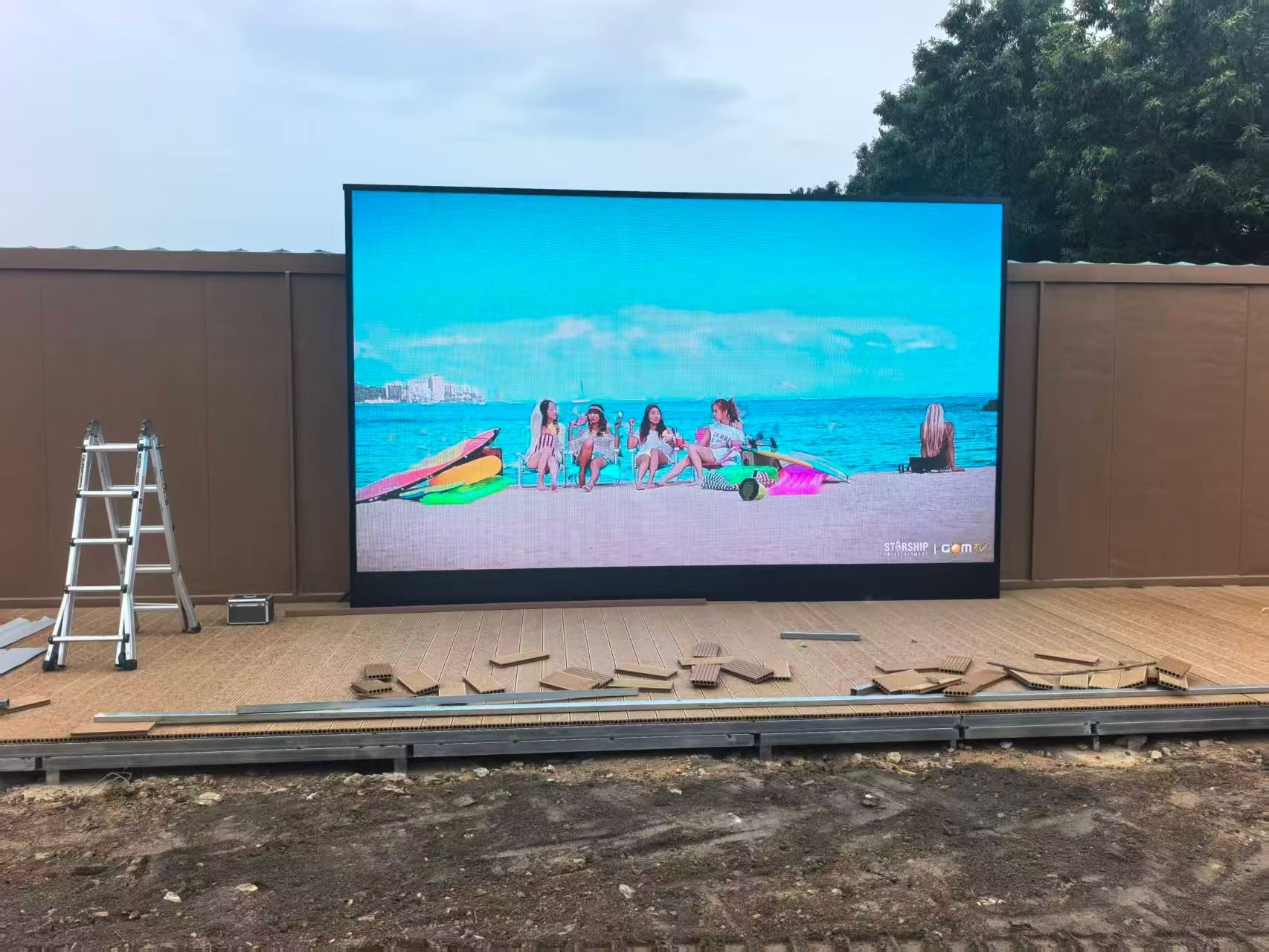
Tell us your cameras and shutters, and we will match the refresh rate and driver your production needs.
Request Camera SpecChat on WhatsApp